Book Appointment Now

Best Ways to Send Large Files on Windows 11 Without Email 📁📤
How to Send Large Files Without Email (Easy & Secure Ways)
Email is great for everyday communication 💬, but it quickly falls short when you need to send large files 📎. Attachment size limits make it frustrating to share big videos 🎥, high-resolution photos 🖼️, or important documents 📄. That’s why many people search for how to send large files without email, especially on Windows 11 💻.
In this guide, you’ll discover the best and easiest ways to send large files without using email 🚀. From cloud storage links ☁️ to secure file-transfer tools 🔐, these methods help you share big files quickly ⚡, safely ✅, and without worrying about size limits. Whether you’re a student 🎓, professional 💼, or content creator 🎨, these solutions will save you time ⏱️ and stress 😌.

1.☁️ Cloud Storage Solutions
Using Cloud Storage Services
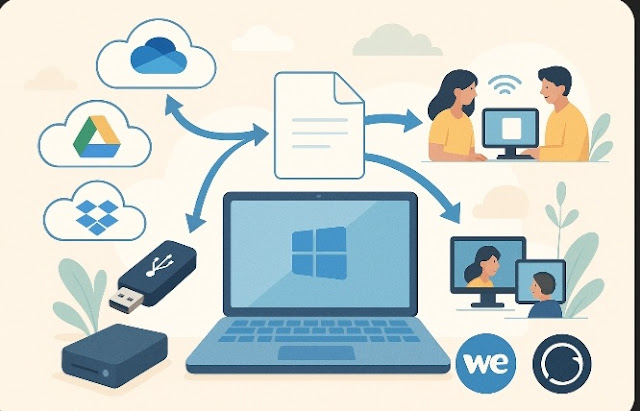
One of the easiest and most reliable ways to share large files is by using cloud storage services. Some of these platforms even have built-in support in Windows 11.
🟦 OneDrive
Since OneDrive is built into Windows 11, it makes sense for a lot of users. Here’s how you can use it:
- Upload Your File: Just open your OneDrive folder on your PC and drag & drop your large file 📂➡️☁️
- Share the Link: Right-click on the file and click “Share.” You can then create a link 🔗
- Control Access: Set permissions for view-only or editing access
Other Cloud Services
📌 Besides OneDrive, consider:
- Google Drive: Upload your file, hit “Share,” and generate a link 📎
- Dropbox: Use “Share” to send a downloadable link 📥
- Box: Great for enterprise-level secure document sharing 🏢🔐