Book Appointment Now

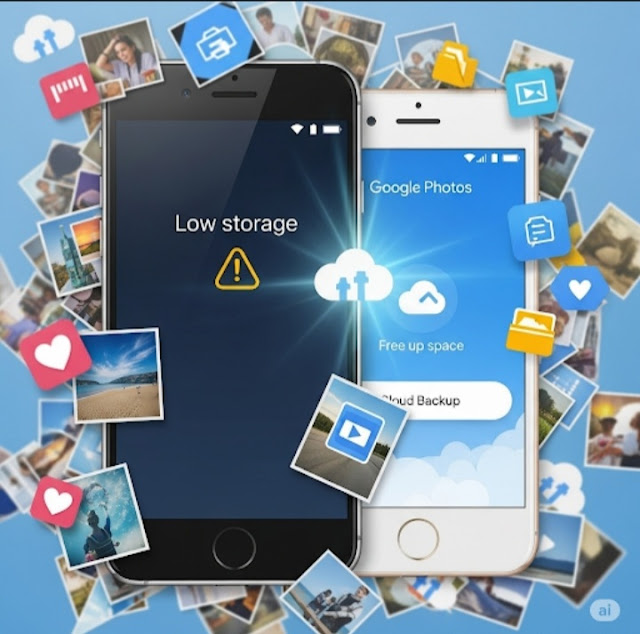
Maximize Phone Storage with Google Photos: Free Up Space Without Losing Memories! ✨📱
How to Free Up Space on Google Photos 📸 Without Deleting Photos or Videos 💾
Running out of storage on your phone 📱 or Google account ☁️ can be stressful — especially when your photos and videos hold precious memories ❤️. The good news is that Google Photos lets you free up space without permanently deleting your photos. In this step-by-step 2025 guide 🧭, you’ll learn how to use the “Free up space” feature, choose the right upload quality, and apply smart storage tips 💡 to clear phone storage while keeping every photo safe in the cloud ☁️📸. This method works on both Android and iPhone — without losing a single memory ✨.

Enable Backup & Sync 🔄
Before freeing up space, make sure all your photos and videos are backed up to Google Photos 🛡️.
Steps to enable backup:
- Open the Google Photos app 📱.
- Tap your profile picture in the top-right corner 👤.
- Go to Photos settings > Backup & sync ⚙️.
- Enable Backup & sync and select your preferred Google account ✅.
- Under Upload size, choose
- Storage saver 🪄 (lower quality, saves space)
- Original quality 🌟 (full resolution, uses more space)
Once enabled, your media is safely backed up to the cloud ☁️. You can now delete files from your device without losing them 🗃️.
Use the “Free Up Space” Feature 🧹📂
Google Photos can automatically find backed-up items and suggest deleting them from your phone 🧠.
Here’s how:
- Open Google Photos 📲.
- Tap your profile picture (top right) 👤.
- Select Free up space 🆓.
- Google scans and shows how much space can be recovered 🔍.
- Tap Delete to remove them from your device 🗑️.
Don’t worry! Your photos remain accessible via Google Photos on any device you’re signed into 🔁.
Clear Out Unnecessary Media 🗃️🧽
Got duplicates, blurry shots, or screenshots you don’t need? Time to declutter! 🧼
How to clean up your library:
- Search smart: Use terms like “screenshots” 🖼️ or “blurry” 🤳 in the search bar.
- Sort by storage size: Go to Library > Utilities > Manage storage to find large items 📦.
- Archive, don’t delete: Move less important photos to the Archive 🗂️ to keep your gallery neat.
Get More Space with Google One 🚀
You get 15GB of free storage shared between Google Photos, Gmail, and Drive ✉️🗃️. Need more? Upgrade!
Google One Plans (2024+):
- 100GB – $1.99/month 💵
- 200GB – $2.99/month
- 2TB – $9.99/month
Extras include automatic backups and premium editing tools ✨ in Google Photos.
Backup Photos Elsewhere 💽☁️
For extra peace of mind, download your photos to an external hard drive or another cloud service like Dropbox or iCloud 🔐.
To download from Google Photos:
- Visit photos.google.com on a computer 🖥️.
- Select the photos you want 🖱️.
- Click the three-dot menu (top right) ⁝.
- Choose Download ⬇️.
For a full backup, use Google Takeout to export everything in one go 📦.
Final Thoughts
Google Photos helps you clear up phone storage without losing precious memories 💖. Enable backup, use the “Free up space” feature, clean your gallery, and upgrade if needed.
FAQS
🔹 What does “Free up space” do in Google Photos? 📱
The Free up space feature removes photos and videos from your device only after they’re safely backed up to Google Photos ☁️. Your files stay accessible online anytime.
🔹 Will my photos be deleted forever if I free up space? ❌📸
No! ✅ Your photos remain safe in Google Photos cloud storage. You can view, download, or share them anytime by signing into your Google account 🔐.
🔹 Does freeing up space delete photos from Google Photos? 🤔
No 🚫. It deletes photos only from your phone storage, not from Google Photos online. However, manually deleting photos inside the app will remove them from the cloud too ⚠️.
🔹 How can I free up more storage without deleting memories? 💡
You can:
✔ Switch to Storage Saver quality 📉
✔ Delete duplicates and blurry photos 🧹
✔ Remove large videos 🎥
✔ Use Manage Storage tools in Google Photos ⚙️
🔹What is Storage Saver vs Original Quality? 📊
Storage Saver compresses photos slightly to save space 🗜️, while Original Quality keeps full resolution but uses more storage 💾. Storage Saver is best for most users 👍.
🔹 Will Google Photos continue backing up new photos? 🔄
Yes ✅. As long as Backup is turned on, new photos will keep syncing automatically. Just ensure you have available Google storage or upgrade via Google One 📦.
🔹Can I free up space on both Android and iPhone? 📲
Absolutely! 👍 The feature works on Android and iOS devices, though menu names may look slightly different.
Are you making the most out of Google Photos?
Drop your tips in the comments below! 💬