Book Appointment Now

Quick File Previews on Windows 11📂⚡
4 Simple Ways to Preview Files Without Opening Them on Windows 11📂⚡💻
Do you want a faster way to view files on Windows 11? ⚡💻
4 Ways to Preview 📄🖼️🎥 Without Opening Them ✨
Standard Benefits & Features ⚙️✅ Automate your workflow 🤖

Sick and tired of opening one damn file after another to find what you need? 😫📂
Fortunately, Windows 11 💻✨ has a few options that let you preview files in no time ⏱️, so you can save time ⌛ and be more productive 📈.
Whether you’re managing documents 📄, images 🖼️, or videos 🎥, these techniques let you get a glimpse 👀 of the content without fully launching the file.
In this article, I’m covering 4 quick and easy methods 🚀 to preview files in Windows 11 without opening them.
1️⃣ Actively activate the Preview Pane 📑 in File Explorer
The Preview Pane 📑 is a native Windows 11 💻 feature for showing file content directly in File Explorer 📂.
How to enable it:
🟢 Open File Explorer 📂- Go to View > Show > Preview Pane 👁️
- 📌 Just select any file 📄🖼️🎥 and you can see the preview on the right-hand side ➡️
- ✅ Works well on common file types like PDFs 📕, Word documents 📝, Excel files 📊, images 🖼️, and videos 🎬
2️⃣.Use Large Icon View 🖼️🔍with Hover for Media Files
For those who work with many photos 🖼️ or videos 🎥, Windows 11 💻 comes with thumbnail previews 🔍.
Steps to enhance your view:
📂 Navigate to a folder that contains media files 🎬🖼️- 🖱️ Go to View > Large icons 🔍 or Extra large icons 🖼️🔎
- 📌 On the file, right-click 🖱️➡️ to see a shorthand preview 👁️ (also works for some video formats 🎞️)
- 💡 That’s a no-set-up-necessary ⚡ built-in method to preview visible files quickly 🚀.
3️⃣ Install QuickLook 💨 for macOS-style previews
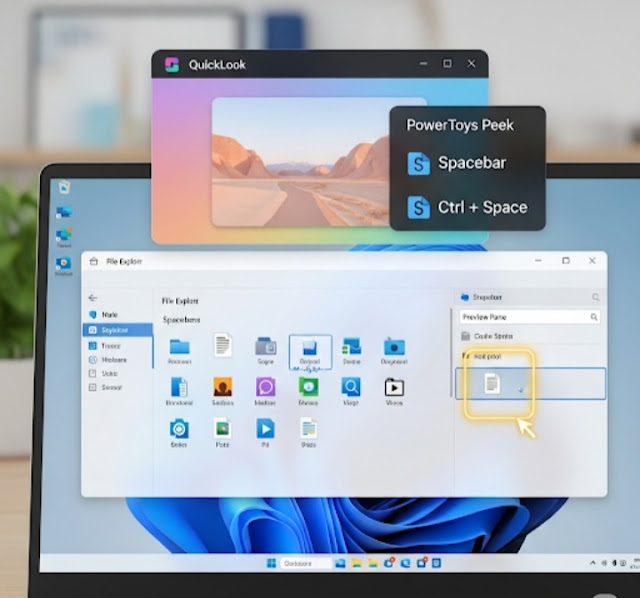
Looking for a macOS-style preview 🍏👀 for your Windows 💻? QuickLook ⚡ is a free app that emulates Apple’s file previews with a tap of the Spacebar ⌨️.
How to use QuickLook:
- 🛒 Get it from the Microsoft Store 🏬
- 📥 Install and launch the app 🚀
- 🔘 Press Spacebar ⌨️ after selecting a file 📄🖼️ to open a pop-up preview 🪟
- ✅ QuickLook can preview several types of documents 📑, such as images 🖼️, PDFs 📕, Office files 📊📝, and basic text files 📄.
4️⃣ Use PowerToys Peek Feature ⚡ for instant floating previews
Peek 👀 in Microsoft PowerToys ⚡ helps you preview files 📂 using a keyboard shortcut ⌨️.
How to enable and use Peek:
- 🌐 Go to Microsoft’s GitHub 🖥️ or Store 🏬 and download & install PowerToys 📥
- ⚙️ Open PowerToys and activate the Peek utility 🔧
- 📄 Select a file and hit Ctrl + Space ⌨️ to open a floating preview window 🪟
- 💡 It’s particularly useful for developers 👨💻👩💻 and power users 🚀 who work with various file types 📑🖼️🎥.
Final Thoughts 💭
Previewing files in Windows 11 💻 via these techniques can be a game-changer 🎯 for your everyday workflow 🔄. Whether you prefer the native Preview Pane 📑, QuickLook ⚡, or PowerToys Peek 👀, there’s an answer for everyone ✅.
So quit wasting time ⏳ and start previewing smarter 🧠✨.
Looking for help with optimizing your Windows 11 experience? ❓💬 Got questions? Leave them in the comments 📝, or share your favorite file preview tip! 💡👇