Book Appointment Now

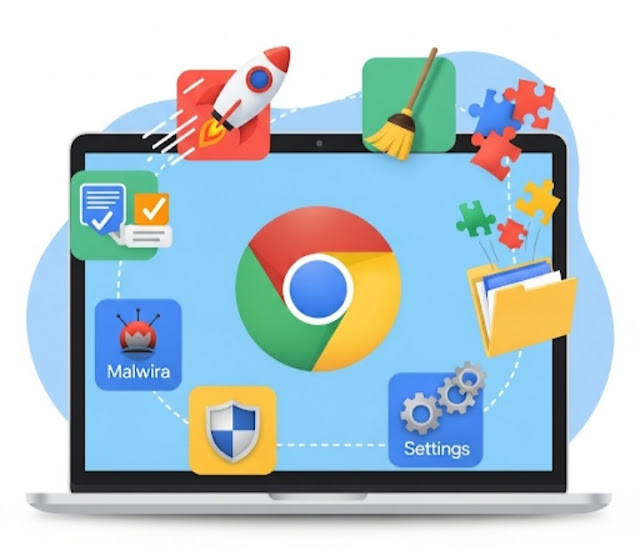
Supercharge Your Chrome: Easy Tips to Make Your Browser Lightning-Fast ⚡️🚀
🚀Use These Simple Tips to Make Your Google Chrome Browser Faster⚡️💻
🚀Supercharge Your Chrome Experience! ⚡️
Tired of slow browsing and laggy tabs? 🌐 Your Google Chrome can feel lightning-fast with just a few smart tweaks! From clearing clutter to adjusting hidden settings — these simple tips will boost speed, performance, and your overall browsing efficiency. Let’s make every click smoother and faster! 💨🔥

🔄 Keep Chrome Updated
Keeping your browser up to date is one of the easiest ways to keep it running smoothly.
🛠️ How to Update:
- Click the three-dot menu at the upper right
- Help > About Google Chrome Chrome will check for updates automatically.
✅ Why it matters:
Updates often include bug fixes, performance boosts, and security patches that reduce lag and load pages faster. ⏱️
🧹 Clear Browsing Data
Over time, your cache, cookies, and history pile up and slow things down. 😵
🧭 How to clear data:
- Go to Settings > Privacy and security
- Click Clear browsing data
- Select a time range (like last week or last month)
💡 Pro Tip: Clear cached images and files instead of saved passwords to keep your logins intact. 🔐
🧩 Manage Extensions and Plugins
Extensions are great until they start hogging your system’s resources. 🐢
🔍 To review extensions:
Type `chrome://extensions/` in the address bar
Disable or remove ones you rarely use
💡 Why it helps: Fewer active extensions = faster Chrome + less memory usage. 💾
🗂️ Tame Those Tabs
Got 37 tabs open “for later”? 🫣 Each tab consumes memory and slows Chrome down.
🛠️ What you can do:
- 📌 Bookmark tabs you plan to revisit
- 🧠 Use extensions like OneTab or The Great Suspender** to pause inactive tabs
🚀 Result: Chrome becomes more responsive and your computer breathes easier.
💻 Enable Hardware Acceleration
Let your GPU help out! This setting boosts performance by offloading some tasks from your CPU.
🛠️ How to enable:
- Go to Settings > Advanced > System
- Toggle on Use hardware acceleration when available
Restart Chrome
🎯 Why it’s useful: Great for smoother video playback and animations! 🎞️✨
🧠 Use Chrome’s Built-In Task Manager
Just like Windows Task Manager, Chrome has its own. 🖱️
To open:Press `Shift + Esc` or go to More tools > Task Manager
💣 What to do:
- Spot resource-hogging tabs/extensions and shut them down!
- 📊 Benefit:Real-time control over Chrome’s performance. 🎯
- ⚙️ Optimize Your Settings
🔄 Preload Pages:
- Go to Settings > Privacy and security > Cookies and other site data
- Turn on Preload pages for faster loading
🙈 Turn Off Fancy Effects:
Fewer animations = faster interactions (especially on older PCs) 🖥️✨
🛡️ Scan for Malware
Background malware can seriously slow things down and threaten your data. 😱
🧼Run a scan:
- Go to Settings > Advanced > Reset and clean up > Clean up computer
- Let Chrome scan and remove harmful software 🔍🛡️
✅ Final Thoughts
Improving Chrome’s speed doesn’t take a tech genius. Just a few quick fixes clear out old data, limit unnecessary add-ons, tweak a few settings and you’ll be amazed by the performance jump. 🔧💨
✨Remember: A faster browser = better speed, stronger security, and a smoother online experience.
Happy browsing! 🌐😊
❓ Why is my Google Chrome browser so slow? 🐌
Chrome may slow down due to too many extensions, cached data, outdated versions, or heavy background processes running at the same time.
🧹 Does clearing cache and cookies really speed up Chrome?
Yes! Clearing cache and cookies removes temporary files that can slow down your browser and improves overall performance ⚡.
🧩How do Chrome extensions affect browser speed?
Too many extensions consume memory and CPU resources 🖥️. Disabling or removing unused extensions can instantly make Chrome faster.
🔄 Is it important to keep Google Chrome updated?
Absolutely! Updating Chrome ensures better speed, improved security 🔐, and access to performance enhancements.
📱 Will these tips work on mobile devices too?
Yes! Most of these tips apply to Chrome on Android and iOS, helping improve speed and smooth browsing 📲.
🚀 Can Chrome run faster on low-end PCs?
Yes, by limiting tabs, disabling unnecessary extensions, and enabling hardware acceleration, Chrome can perform better even on low-spec systems 💻.