
How to Upgrade Windows 10 for Free Using Powerful Apps
Looking to boost Windows 10 performance for free without upgrading your hardware? You’re in the right place! In this guide, we’ll show you how to use a free Windows 10 optimization app to clean junk files, speed up your PC, and improve overall system performance in just a few clicks.
💻 Whether your computer is running slow, freezing, or taking too long to start, this Windows 10 speed boost guide will help you fix common issues and get your PC running like new again—no technical skills required!

⚡ Discover the best methods for Windows 10 performance optimization, including memory cleanup, startup management, and system tuning using trusted free tools.
🔟 Hidden Free Upgrades in Windows Apps You Didn’t Know About 💻✨
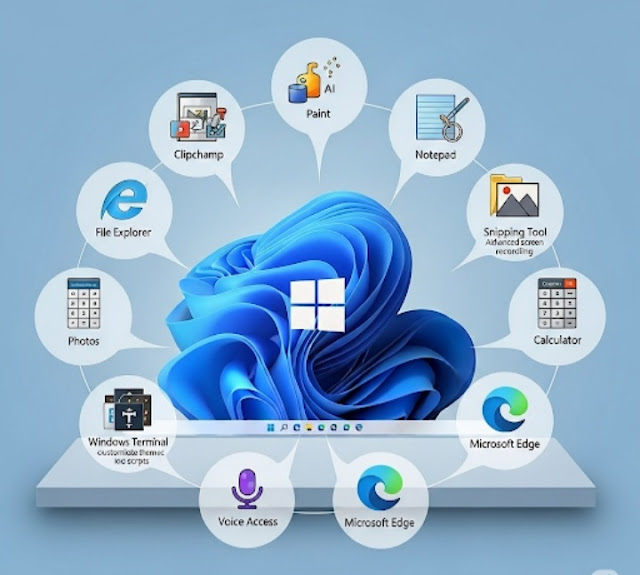
1.🎬 Clipchamp: Advanced Video Editing
Remember Windows Movie Maker? Microsoft swapped it out for Clipchamp, and it’s actually pretty good. It’s got multi-track editing, templates, stock media, and even AI voiceovers no watermarks included. You don’t have to pay unless you want premium assets.
📍 Where it is: Preinstalled on Windows 11 or download from the Microsoft Store.
2.🎨 Paint: Now with Layers & AI
Microsoft Paint just received a serious glow-up. Now you can work with layers, remove backgrounds with one click, and even use AI tools like “Cocreator” to generate artwork from text prompts (in supported regions)
📍 Where to get it: Open Paint from the Start menu and update it through the Microsoft Store.
3.📝 Notepad: Autosave & Tabs
Notepad finally catches up with modern text editors. It now autosaves your work ✨ and lets you open multiple notes using tabs. A sleek dark mode is also available for night owls 🌙.
📍 Where to find it: Open Notepad and make sure it’s updated.
4.📹 Screen Recording & OCR | Snipping Tool
The Snipping Tool now records your screen 🎥 and can extract text from images using OCR 🔤— perfect for copying from photos or PDFs
📍 Where to get it: Hit Win + Shift + S or launch from the Start Menu.
5.🗂️ File Explorer: Tabbed Browsing
File Explorer now supports tabs 📑, making multitasking way easier. Plus, a new “Gallery” view helps organize your photos neatly 📸.
📍 Where to locate it: Press Win + E. If tabs are missing, update Windows.
6.🖼️ Microsoft Photos: Editing with AI
The Photos app now includes background blur 🎯, cropping tools ✂️, and AI-powered enhancements a solid alternative to basic editors.
📍 How to access it: Launch Photos from the Start menu and update if needed.
7.🧮 Calculator: Currency & Unit Converter
Beyond math, the Calculator app can convert currency 💱, temperature 🌡️, weight ⚖️, and more no more Googling!
📍 Where to get it: Open Calculator > select “Converter” tab.
8.💻 Windows Terminal: Enhanced Command Line
Ideal for developers or power users, Windows Terminal supports tabs 🧩, multiple shells (CMD, PowerShell, WSL), and themes 🎨.
📍 Where to get it: Built into Windows 11 or available on Microsoft Store.
9.🎙️ Voice Access: Control PC with Your Voice
Voice Access lets you control your PC with voice alone — open apps, dictate, and click anything you see on-screen 🗣️.
📍 Where to find it: Go to Settings > Accessibility > Speech.
10.🌐 Microsoft Edge: Writing & Research with AI
Edge now features AI tools like “Compose” ✍️, “Copilot” 🤖, and a multitasking sidebar. It also includes a PDF reader 📄 with markup tools.
📍 Where to get it: Just update Edge for the latest features.
💡 Final Thoughts
Microsoft keeps improving its built-in apps, and now they’re more powerful than ever. From editing videos to using AI tools — all for free — you might not need extra apps anymore 🎉.
🤔 Which feature is your favorite? Let me know in the comments!
FAQs
1. 💻 Can I really boost Windows 10 performance for free?
Yes! 🚀 You can improve speed and performance using free optimization apps that clean junk files, manage startup programs, and free up system resources.
2. ⚡ Which free apps are best for speeding up Windows 10?
Popular options include system cleaners, disk optimizers, and RAM boosters 🔧. These tools help remove unnecessary files and improve overall system efficiency.
3. 🖥️ Will these apps make my old PC faster?
Yes 👍 Free optimization tools can significantly improve performance on older PCs by reducing lag and freeing up memory.
4. 🔧 Is it safe to use free Windows optimization apps?
Most trusted apps are safe ✅, but always download from official websites and avoid unknown sources to protect your system.
5. 💨 How quickly can I see performance improvements?
In many cases, you’ll notice faster performance instantly ⚡ after cleaning junk files and optimizing system settings.
6. 💾 Do I need technical skills to use these apps?
No 😊 Most free tools are beginner-friendly and offer one-click optimization features.
7. 🚀 Can I upgrade Windows 10 performance without hardware changes?
Absolutely! 🎯 Software optimization alone can boost speed without upgrading RAM or storage.

Leave a Reply