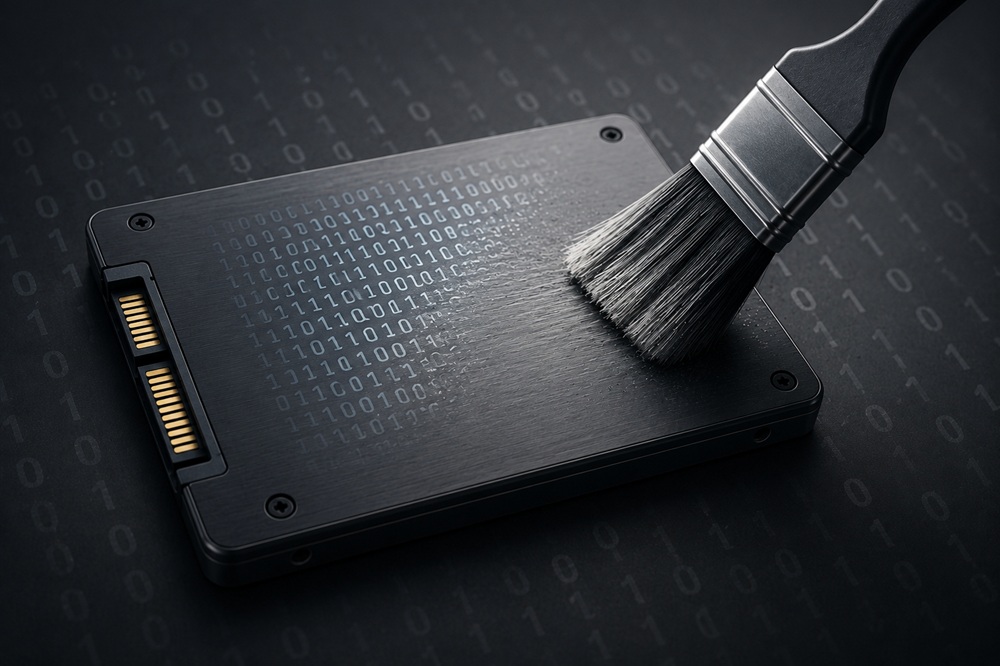
We all have old laptops, PCs, or phones collecting dust in a drawer. When it’s time to sell, donate, or recycle them, most people just delete their files or hit “factory reset,” assuming their data is gone. Unfortunately, that’s a dangerous mistake.
Deleting a file doesn’t truly erase it. Data recovery tools can easily bring back your photos, documents, and emails. If your old device ends up in the wrong hands, your privacy is at risk. The good news? Securely wiping your device is easier than you think.
Why Deleting Files Isn’t the Same as Erasing Them
When you delete a file or empty the Recycle Bin, the data isn’t erased immediately. Your computer simply marks that space as available for new files.
Think of it like removing a book’s table of contents: the chapters are still there, but the guide to find them is gone. Because of this, recovery tools can easily dig up deleted data, including:
- Family photos and videos
- Personal and business documents
- Tax records and financial info
- Saved passwords and browser data
- Private conversations
Deleting files is fine if you’re keeping the computer, as daily use will eventually overwrite that space. But if you’re selling or donating your device, standard deletion simply isn’t enough.
A dead device doesn’t mean dead data.
Laptops often stop turning on due to a broken screen, bad battery, or failed motherboard, while the SSD or hard drive inside remains completely intact. The same goes for mobile phones a completely unresponsive phone often still has readable internal storage.
Technicians can easily remove these storage components or use specialized tools to pull photos, messages, and personal files directly off them. If you are recycling or tossing a broken device, never assume your information is gone just because it won’t power on.
Before You Erase Your Device
Before wiping your laptop, desktop or phone, take a few minutes to prepare.
- Back up the files you want to keep.
- Sign out of your Microsoft, Apple or Google account.
- Save any software licence keys you may need later.
- Remove your SIM card from mobile phones.
- Remove memory cards, USB drives or external storage.
- Double-check that your backup is complete.
Once you’re sure you have everything you need, you’re ready to erase the device.
How to Securely Wipe a Windows Laptop or Desktop
Before resetting your PC:
- Back up your important data.
- Sign out of your Microsoft account.
- Save any software licence keys you need.
Then:
- Open Settings.
- Search for Reset this PC.
- Select Remove everything.
- Choose Local reinstall or Cloud download.
- Enable the Clean data option to overwrite your files.
- Confirm and start the reset.
Turning on the drive-cleaning option ensures Windows overwrites your old files with junk data, making them virtually impossible to recover.
How to Securely Wipe a Mac
Before resetting your Mac:
- Back up your important data.
- Remove any external drives or USBs.
Then:
- Open System Settings (or System Preferences).
- Search for Erase All Content and Settings.
- Follow the prompts to sign out of your Apple Account.
- Confirm the erase to start the reset.
Modern Macs automatically destroy your hardware encryption keys during this process, instantly rendering your leftover data unreadable.
How to Securely Wipe an Android Phone
Before resetting your phone:
- Back up your important data.
- Remove your Google account.
- Remove the SIM card.
- Remove any microSD card.
Then:
- Open Settings.
- Go to System or General Management.
- Tap Reset.
- Select Factory Data Reset.
- Confirm the reset.
Most modern Android phones automatically encrypt their storage. Combined with a proper factory reset, this makes recovering your personal information extremely difficult.
How to Securely Wipe an iPhone
For iPhone users, the process is just as straightforward.
- Back up your data.
- Sign out of your Apple ID.
- Open Settings.
- Tap General.
- Choose Transfer or Reset iPhone.
- Tap Erase All Content and Settings.
This securely removes your personal information and restores the phone to its factory settings.
What About Old Hard Drives vs. Modern SSDs?
Older computers use traditional hard disk drives (HDDs), while most modern laptops use solid-state drives (SSDs).
Years ago, wiping a drive meant using third-party software to overwrite the storage multiple times. While that worked well for old hard drives, modern SSDs work completely differently. Overwriting an SSD repeatedly can cause unnecessary wear and may still miss data hidden in background storage areas.
For modern SSDs, the safest and easiest approach is to use the built-in reset or secure erase tools in Windows or macOS. These tools leverage your system’s built-in hardware encryption and TRIM commands to wipe the drive safely and instantly.
Don’t Forget These Other Devices
Your laptop or phone isn’t the only place where personal data is stored.
Before disposing of old electronics, remember to check:
- USB flash drives
- External hard drives
- SSDs
- Memory cards
- Digital cameras
- Tablets
Many people forget about these devices, even though they may contain years of personal files.
Common Mistakes to Avoid
Before your device leaves your hands, avoid these common mistakes:
- Simply deleting your files.
- Emptying the Recycle Bin and assuming everything is gone.
- Forgetting to sign out of your online accounts.
- Selling or donating a device without performing a full reset.
- Leaving a memory card or SIM card inside the device.
- Throwing away a broken laptop or phone without thinking about the data stored inside.
Each of these mistakes could leave your personal information exposed.
Protecting Your Privacy Before Passing On a Device
Your old laptop or phone might be useless to you, but your personal data is still valuable to someone else. Whether you are selling, donating, recycling, or throwing a device away, taking a few minutes to wipe it properly is essential.
Standard file deletion isn’t enough, as recovery tools can easily restore deleted items. Even if a device won’t turn on, the internal storage can often still be read by technicians.
The safest and simplest approach is to use the official reset tools built into Windows, Mac, Android, or iPhone. A few extra minutes today protects years of your photos, passwords, and private files.

Afshi Speaks is a general interest blog dedicated to exploring the stories, ideas, and topics that shape our world. Our team researches and writes across a wide range of subjects to bring curious readers honest, informative, and engaging content.

Leave a Reply